My blog has moved to:
SPWeb object of SharePoint exposes a Field called Properties which is of type SPPropertyBag a sub class of StringDictionary. It allows you to store Key value String Data within a web
Below are some quick points that will help you in using it.
using (SPSite oSite = new
SPSite("http://mysite"))
{
using (SPWeb oWeb = oSite.RootWeb)
{
//Add a Item to Bag
oWeb.Properties.Add("SPPropertyBag","I can Store a StringValue Here");
//Be sure to Call the Update Method on Properties
//If you miss this your value wont get Presisted for the Next Run
oWeb.Properties.Update();
// To Reterive the Value
String sMyItem = oWeb.Properties["SPPropertyBag"];
//Remove the Value
//Be sure to Call the Update Method on Properties
//If you miss this your value wont get Presisted for the Next Run
oWeb.Properties.Remove("SPPropertyBag");
oWeb.Properties.Update();
}
}
Same version of the Post is avaliable in this Link. Formatting Adjusted.
A week back couple of my friends was asking is there a proper way to deploy the InfoPath forms to the server, Way other than File -> Publish - > SharePoint server with or without forms server. I did a quick search and was not lucky, came to a lackadaisical conclusion that there is no other way. But whenever I deploy workflows with InfoPath form I see a new solution that adds itself to the Solution Store. By this I know for sure there is some other way to deploy InfoPath forms. First thing want I wanted was to get the Solution out of SharePoint and see what's there inside, Again for this there is a tool through which you can do it [I lost the url from where I got it] or hardly 10 lines of code is all what you need.
To my surprise there is indeed a way to do it, well let's see how. What I got out of that solution is a feature, what's in it [Image speaks louder than words, image with comments even louder ;) ]
Feature.xml
#########All usual Stuff ###########
<?xml
version="1.0"
encoding="utf-8"
standalone="yes"?>
<Feature
Id="8ad77502-3602-6e81-c4de-8c7f674c4466"
Title="IPDeplotyment"
Description="$Resources:ipfscore,XsnFeatureDescription;"
Version="1.0.0.0"
Scope="Site"
DefaultResourceFile="ipfscore"
#########Here is the hero who does what we need ###########
ReceiverClass="Microsoft.Office.InfoPath.Server.Administration.XsnFeatureReceiver"
ReceiverAssembly="Microsoft.Office.InfoPath.Server, Version=12.0.0.0, Culture=neutral, PublicKeyToken=71e9bce111e9429c"
xmlns="http://schemas.microsoft.com/sharepoint/">
<ElementManifests>
<ElementManifest
Location="Elements.xml" />
<!-- Name of the IP Form
Note:Actual workflow generated feature has a different name-->
<ElementFile
Location="solution.xsn" />
</ElementManifests>
<Properties>
<!-- The Name of the Feature - Infact after you have deployed the WF to sharepoint there will be a
feature by this name that gets added -->
<Property
Key="FeatureName"
Value="FT-01-8ad77502-3602-6e81-c4de-8c7f674c4466" />
<!-- This is going to the File name with which you have Publised from IP Client / Added to the Workflow.xml
if you are going to deploy the IP forms that are not coupled with the WF you can safely ignore the below tag-->
<Property
Key="OriginalFileName"
Value="IPDeplotyment.xsn" />
</Properties>
<ActivationDependencies>
<!-- Just to make sure that you have Enterprise feature turned on-->
<ActivationDependency
FeatureId="C88C4FF1-DBF5-4649-AD9F-C6C426EBCBF5" />
</ActivationDependencies>
</Feature>
Element.xml
################### You are Right its again another File Provisioning in to SharePoint Lib #####################
<?xml
version="1.0"
encoding="utf-8"
standalone="yes"?>
<Elements
xmlns="http://schemas.microsoft.com/sharepoint/">
############# Be sure to put the location as FormServerTemplates############
<Module
Name="XSN"
Url="FormServerTemplates"
RootWebOnly="TRUE">
<File
Url="solution.xsn"
Name="IPDeplotyment.xsn"
Type="GhostableInLibrary" />
</Module>
</Elements>
Well here is the stripped out version of the above file
<?xml
version="1.0"
encoding="utf-8"
standalone="yes"?>
<Feature
Id="8ad77502-3602-6e81-c4de-8c7f674c4466"
Title="IPDeplotyment"
Description="$Resources:ipfscore,XsnFeatureDescription;"
Version="1.0.0.0"
Scope="Site"
DefaultResourceFile="ipfscore"
ReceiverClass="Microsoft.Office.InfoPath.Server.Administration.XsnFeatureReceiver"
ReceiverAssembly="Microsoft.Office.InfoPath.Server, Version=12.0.0.0, Culture=neutral, PublicKeyToken=71e9bce111e9429c"
xmlns="http://schemas.microsoft.com/sharepoint/">
<ElementManifests>
<ElementManifest
Location="Elements.xml" />
<ElementFile
Location="IPDeplotyment.xsn" />
</ElementManifests>
<Properties>
<Property
Key="FeatureName"
Value="FirstIPFeatureWayDeployment" />
</Properties>
<ActivationDependencies>
<ActivationDependency
FeatureId="C88C4FF1-DBF5-4649-AD9F-C6C426EBCBF5" />
</ActivationDependencies>
</Feature>
Element.xml
<?xml
version="1.0"
encoding="utf-8"
standalone="yes"?>
<Elements
xmlns="http://schemas.microsoft.com/sharepoint/">
<Module
Name="XSN"
Url="FormServerTemplates"
RootWebOnly="TRUE">
<File
Url=" IPDeplotyment.xsn"
Name="IPDeplotyment.xsn"
Type="GhostableInLibrary" />
</Module>
</Elements>
Steps in Short:
Below is the List of the SharePoint tools that will boost your productivity. I love them and use them. You too will...
Writing CAML Queries directly in C#.
CAML.NET http://codeplex.com/camldotnet
Custom STSADM command and Command to Get the Content Type Xml Schema
CUSTOM STSADM http://www.andrewconnell.com/blog/articles/MossStsadmWcmCommands.aspx
SQL like CAML Queries - My Favorite one
CAML Queries in SQL Syntax http://www.ideseg.com/SharePointYetAnotherCAMLQueryTool2.aspx
Microsoft.SharePoint.Publishing.PublishingLayoutPage .This article is to give a brief introduction for the Functionality of PageParserPaths tag in the Web.Config file of SharePoint. (It serves as a Reference for me In future and for someone out there looking for a similar implementation).
All the Layout pages in the SharePoint 2007 are derived from the class
This works very well for most of the cases and customization. But there will be very chance that for some reason you want the actual page instance to have a completely different class. Might be a case where you are using a third part tool or a component. In this case if you try to change the base class or put in some custom server side code in to the page layout file, SharePoint will complain you with a parser error.
This Article describes the approach that will help you to put in the code for the layout pages. It works like charm.
On additions to the above article is that in case if you are concerned about allowing all the pages having the server code as defined by below tag
<PageParserPath VirtualPath="/_layouts/masterpage/*" CompilationMode="Auto" AllowServerSideScript="true"
IncludeSubFolders="true"/>
You can make a particular page to have server side code as below
<PageParserPath VirtualPath="/_layouts/masterpage/yourpage.aspx" CompilationMode="Auto" AllowServerSideScript="true"
IncludeSubFolders="true"/>
While configuring a single page, make sure that you remove the attribute IncludeSubFolders="true". If you leave this tag as it is, all you are going to get is a plain HTTP 500 error code which is hard to debug. Validation that SharePoint makes here is IncludeSubFolders="true" can be present only if the attribute VirtualPath ends with /*.
This Poster will help you as Quick Reference for STSADM Command tool.
SQL Server
In case if you have renamed the SQL Server recently and find a trouble to connect to the server using code. Try the below items.
SSRS Reporting Servers:
For the above case you have to use the tool rsconfig that will change the user and server details.
When you try to create a new SSP you might run in to surprise that the newly created web application will not get listed in the list web application of new SSP page.
One quick check you need to perform in this case is to check the App Pool account of the Web Application. If it is Network Services then that the issue. You can find the answer in same New Shared Services Provider page.

J
Process ID for the Web Application:
While debugging SharePoint application mainly SharePoint Workflow you will need to find the Process ID of the Web Application you are trying to Debug. If each of the web application runs in same user account its tough to find the same.
Run the below command that will list all the Application Pool and Its Process ID
c:\windows\system32\cscript.exe c:\windows\system32\iisapp.vbs
Run To access STSADM from any directory in command Prompt:
Add the 12Hive\Bin path to the Windows Environment PATH Variable.
More: Here
It was hard for me to understand how the InfoPath form services licensing work and how it is related to SharePoint server 2007 (MOSS 2007). I stumbled to find the link "Manage InfoPath Form Templates" in my local Development environment which is a Standard SharePoint CAL installation. Today I Googled it and managed to get few information regarding it.
If you still want to get confused more J . Please refer to the below links that give you the information on the various SharePoint licensing favors.
http://office.microsoft.com/en-us/formsserver/FX101865111033.aspx http://littletalk.wordpress.com/2008/02/07/where-is-infopath-forms-services-section/
http://littletalk.wordpress.com/2008/04/24/this-form-template-is-browser-compatible-but-it-cannot-be-browser-enabled-on-the-selected-site/
In most of the application we develop one way or the other we display information to the user stating the result of the operation that was just invoked.
- In particular with ASP.NET we frequently use the Label / Literal control to display the information in the page.
- Once the information is displayed to the user on the subsequent operation we use to clear the Label message that was displayed.
- We do this mostly in the Page_Load event.
- By any chance if we overlook it, old message will confuse the user.
- One quick trick to solve this problem is to set the EnableViewState attribute of the Label /Literal control to false.
- By this ASP.NET won't persist the previously displayed information and whatever message we want to display will be visible only one time.
I found this some of the page in SharePoint. Thought of sharing!
Recently I was working on an EventHandler, Where I have to compare the User value in the Assigned To Field of the List with the other User value. Went down to Google and couldn't find exact code I am looking for, here is the exact code that will do this.
SPUser spUser = GetSPUserOne();
SPUser spPrevUser = GetSPUserTwo();
For Windows Authentication This will do
if(spUser.Sid.Equals(spPrevUser.Sid))
{
…..
}
For FBA you have to follow this
if(spUser.UserToken.CompareUser(spPrevUser.UserToken))
{
…..
}
Hope this helps someone like me
Hello … This is the First Post I tried out with the Word 2007…. It really easy…
and It rocks… If you want to give it a try ..
Follow the links below
http://office.microsoft.com/en-us/word/HA101640211033.aspx
Happy Blogging !!!!!!!!!
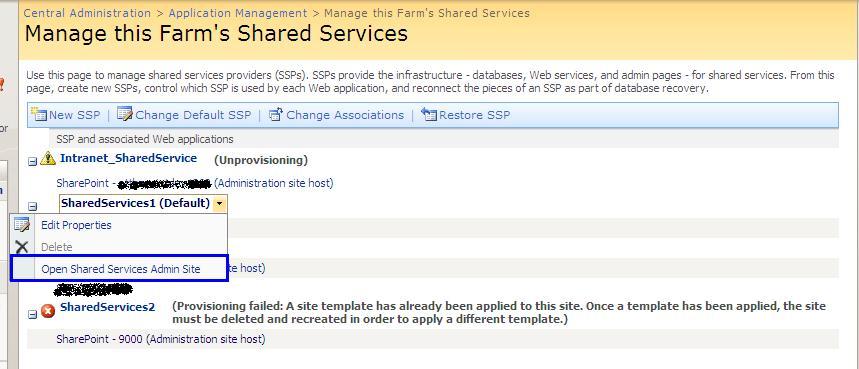
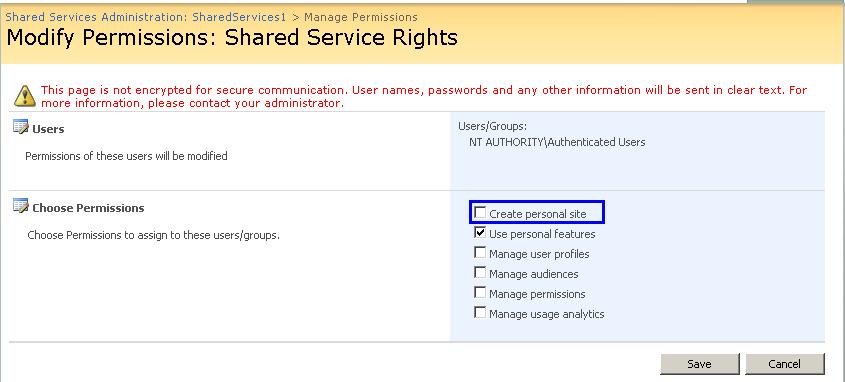
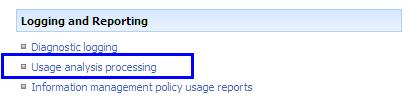
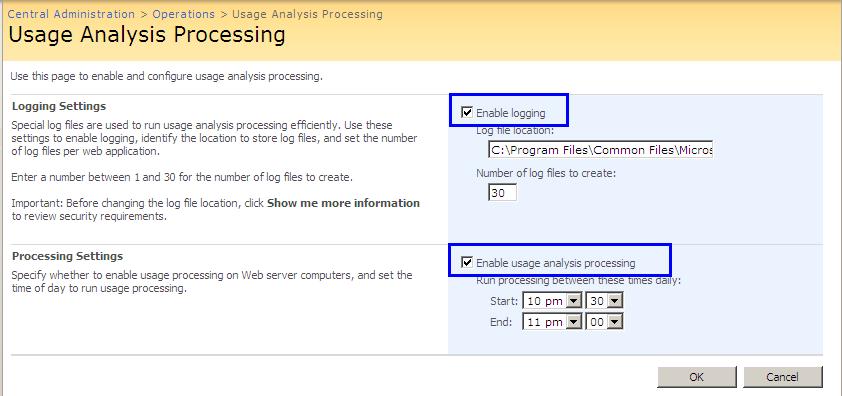
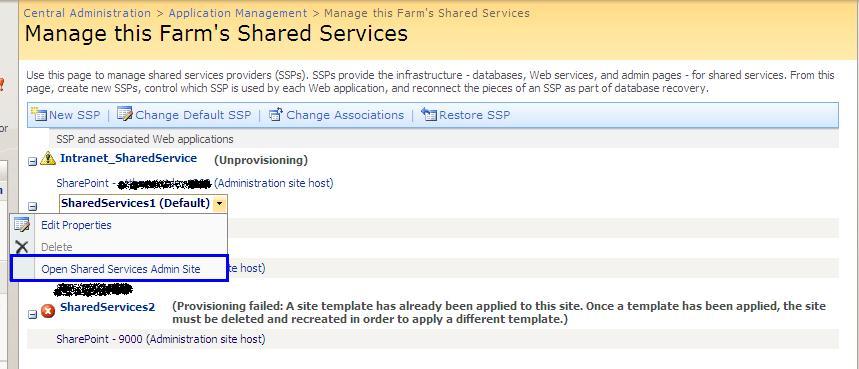
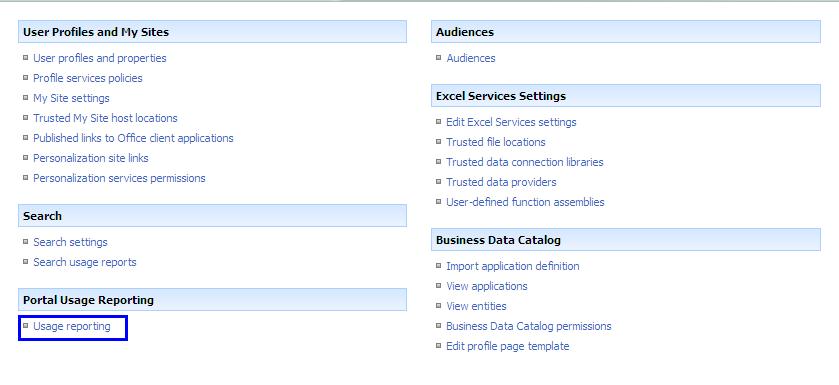
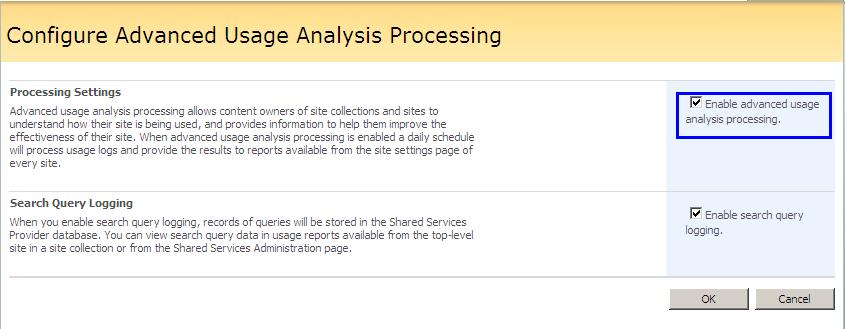
 Shared Services Administration Link from the Central Administration page.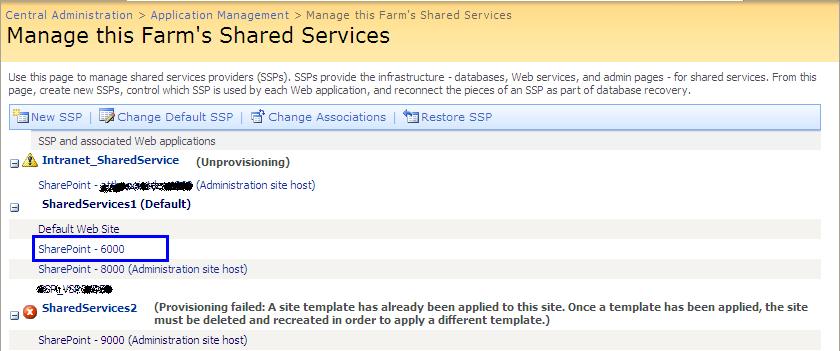
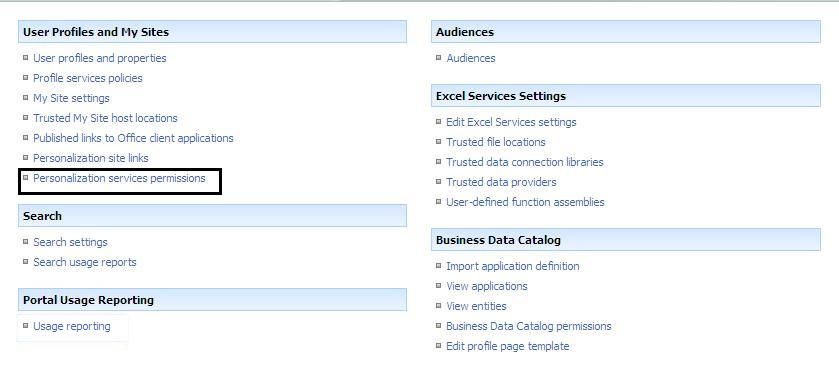
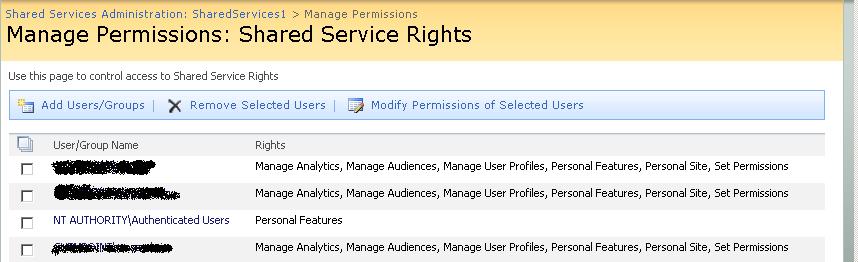




 Posts
All Comments
Posts
All Comments


